How to Block YouTube Channels Without Blocking All of YouTube
A channel can be entertaining and still be the wrong thing to open while you are working. If you use YouTube for tutorials, blocking the entire site may also block the material you need. A more practical approach is to decide which channels belong outside your study session and apply a rule to those channels.
Use YouTube’s “Don’t recommend channel” control to give recommendation feedback. Use YouFocus in Chrome to block a selected channel’s player during Study or Work mode. The extension’s Fun list is a personal focus control, not a guarantee that every mention of a channel disappears from search or every device. This guide explains the distinction, the setup, and how to verify the result.
Blocking a channel and changing recommendations are different
Before choosing a tool, finish this sentence: “When I encounter this channel, I want…” Your answer might be fewer recommendations, an interruption before playback, or no access on any device. Those are different requirements. A control that solves the first is not automatically designed for the other two.
YouTube’s recommendation setting is useful when you want to tell the platform that a creator’s content is not relevant to you. A study-session block is useful when you still like the channel but want a boundary around when you watch it. In that case, the content does not need to be bad, offensive, or uninteresting. It simply does not belong in your current task.
- Recommendation feedback: use the native YouTube menu for a channel you do not want suggested.
- Selective desktop playback blocking: add a channel to YouFocus’s Fun list and activate Study or Work.
- Less short-form browsing: use the separate guide to hiding Shorts and limiting the Shorts feed.
- A restriction someone cannot switch off: this requires a different access-control setup. YouFocus exposes its mode switch to the person using it.
Writing down the desired outcome also makes testing easier. If your goal is “interrupt this creator’s videos during study,” open a video from that creator after setup. If your goal is “remove every result from search,” do not treat a player block as proof that the search requirement has been met.
Use “Don’t recommend channel” in YouTube
On a supported recommendation surface, such as Home or Watch Next, find content from the channel. Open the menu next to its title and select Don’t recommend channel where offered. YouTube uses this feedback to tune recommendations; the menu is not available in every context. Some recommendation controls require you to be signed in. The official recommendation guide documents the current steps.
Think of this as feedback about what YouTube should suggest. It should not be interpreted as a general access ban. YouTube also explains the role of channel feedback in its description of how recommendations work.
If you cannot find the menu, check whether you are looking at a recommendation or at a different surface, such as a channel page. Searching around unrelated account settings is unlikely to help. Use the linked documentation to identify the intended screen, then decide whether this control matches your original goal.
You can combine recommendation feedback with a personal focus rule. For example, you might not want a channel suggested at all, while also wanting its videos interrupted if you follow an old bookmark during a work session. These controls solve different parts of that scenario; neither needs to be mistaken for a universal ban.
How to block a YouTube channel with YouFocus
YouFocus’s channel list is called the Fun list. Channels on it are blocked while Study or Work mode is active. Focus off allows normal viewing. This lets you keep a channel for leisure while making a deliberate decision before watching it during a task.
- Install YouFocus from the Chrome Web Store in the browser profile you use for YouTube.
- Open a normal YouTube video from the channel you want to block. Wait for the video page and channel information to load.
- Click the extension icon. Find Block this channel in Study/Work and check that the displayed channel name is the one you intended.
- Click Block. The channel should appear as blocked in the popup.
- Select Study or Work. Return to the video and confirm that playback is interrupted and the blocking overlay appears.
- Open a video from a channel that is not on your list. Confirm that you can still use it for the task.
Checking the channel name before pressing Block is a small but useful precaution. You may have opened several tabs, or YouTube may still be loading a new page. Add the channel shown in the popup only after it matches the creator you mean. If the popup says to open a video or channel page, return to a normal watch page and try again once it has loaded.
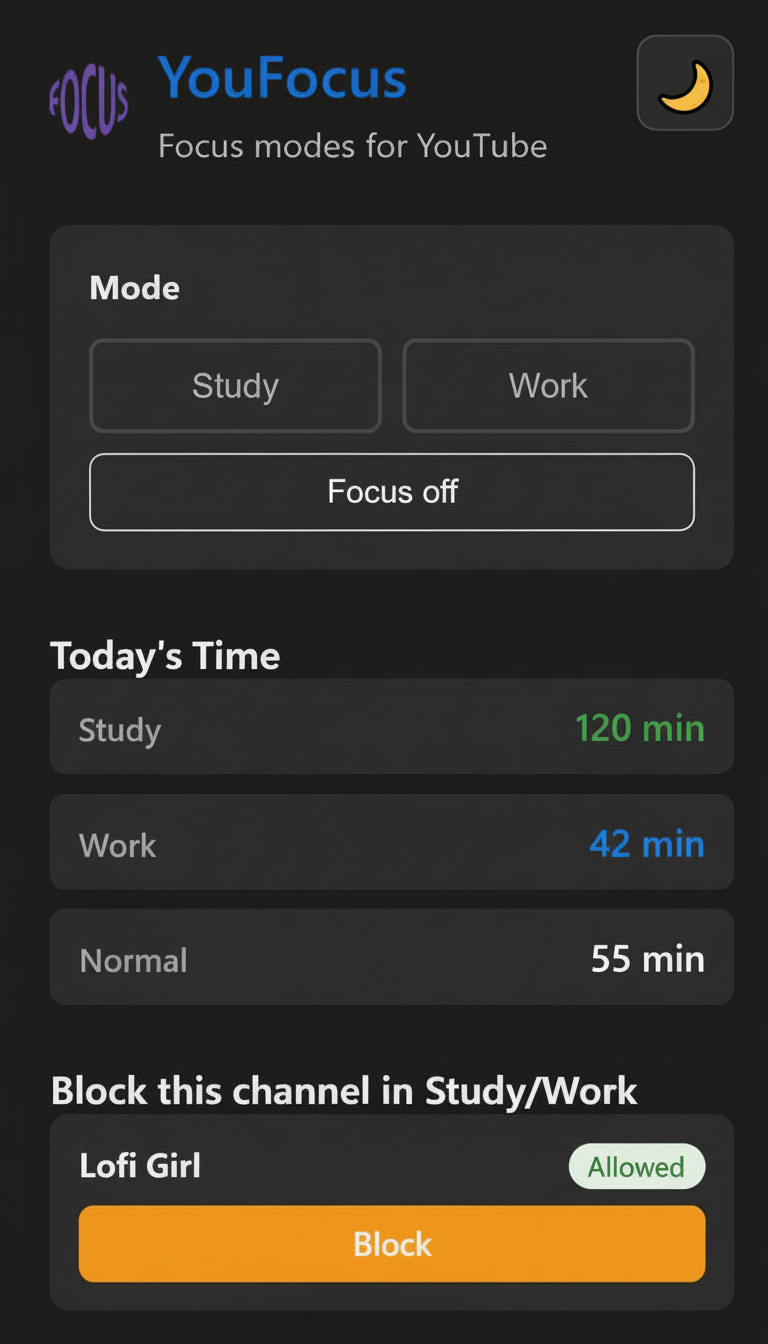
The current focus modes also restrict Home and Shorts. Study and Work use the same page restrictions and keep time in separate categories. Choose the label that matches your activity, rather than expecting one mode to apply a stronger channel block. The focus mode overview explains how the larger workflow fits together.
What this channel block does and does not cover
When YouFocus recognizes a blocked channel on a supported YouTube watch page during a focus mode, it pauses the video and displays a player overlay. The intervention is local to the browser using the extension. It does not send a request to the creator, unsubscribe you, or edit your Google Account’s recommendation preferences.
The block also does not promise to remove all search results, thumbnails, mentions, reposts, or embedded versions elsewhere on the web. A different channel can publish related material, and a result can remain visible even when playback on the original channel is restricted. Keep that distinction in mind when deciding whether this is the right tool for your use case.
You can turn Focus off or remove a channel from the Fun list. That is useful for voluntary study routines: the decision to watch becomes explicit. It also means the extension is not intended to enforce a restriction against a determined user. A separate browser profile, another device, or a disabled extension falls outside the active setup.
If you share a computer, check which Chrome profile you are using before changing the list. A setup made for your own work session may not be appropriate for someone else’s browsing. Keep the list understandable so you can revisit it later without wondering why a particular creator was added.
Build a small list that matches your actual distractions
Start with channels you have personally opened instead of doing a planned task. There is no need to classify every creator as educational or unproductive. A cooking demonstration can be essential when you are preparing a meal and a distraction when you are fixing a spreadsheet. Your current intention is the useful criterion.
For a first pass, write down the channels involved in your last few unplanned detours. Add only the ones you expect to encounter again. A short, specific list is easier to understand and maintain than a large collection assembled from general ideas about what other people consider distracting.
Some creators publish both tutorials and entertainment. In that case, choose whether a channel-wide rule is worth the inconvenience. You might leave the channel allowed and enter through direct lesson links, or temporarily remove it from the list for a course. Do not assume a channel block can distinguish the intent of every individual upload.
Set a review point after a few study sessions. If a blocked channel has become part of your coursework, update the list. If a different creator repeatedly takes you off task, add that one. The list should reflect observed behavior rather than become a permanent judgment about what you are allowed to enjoy.
For example, imagine you are learning spreadsheet formulas. Your plan is to reproduce one example in your own sheet. Keep the lesson open, add the entertainment channel you repeatedly visit to the Fun list, and activate Study. When you finish the example, take your break deliberately. This gives the block a clear purpose and an endpoint.
Make the allowed videos lead to something useful
A selective block leaves plenty of videos available. That is helpful, but it also leaves room to spend an hour browsing educational material without doing anything with it. Pair your list with a small output: a worked exercise, a tested code snippet, a sketch, or a written explanation in your own words.
During a lesson, use timed notes on the video player to capture the example you want to revisit. Write what makes the moment useful, not just “important.” A note such as “why the formula needs an absolute reference” gives you a reason to return.
At the next session, open the saved timestamp from History and attempt the step before watching more. You can also review your YouTube viewing time to see which sessions became longer than intended. Use those observations to adjust your routine, rather than assuming every minute in Study mode represents useful learning.
Troubleshooting: the channel is still playing
Confirm Study or Work is active. The channel list is enforced in those modes. Focus off deliberately restores ordinary access. A saved channel entry alone is not the same as an active restriction.
Check that the right channel was added. Open the popup on the video you are trying to block and compare the displayed name with your list. Similar display names, reuploads, and another creator’s reaction video can make two different channels look related without being the same channel.
Refresh after installation or an update. A YouTube tab that was already open may need a refresh. Also check that the extension is enabled and allowed to run on YouTube in the Chrome profile you are using. Test on a normal watch page before moving to unusual layouts or embedded players.
Separate a visible result from working playback. Seeing a search result does not establish that the player block failed. Open the result in the supported browser with a focus mode active and inspect the player. That test matches the behavior this guide describes.
Report a reproducible failure. If the correct channel is blocked and still plays, send your browser and extension versions, selected mode, page type, and exact steps through the YouFocus feedback form. YouTube layout changes can affect channel detection. Keep private account information out of screenshots and reports.
Common questions about blocking YouTube channels
How do I unblock a channel?
Open its video or channel page, open YouFocus, and select Remove from Fun list. You can also remove an entry from the blocked-channel list in the popup. Choose Focus off if you want to allow normal browsing without deleting the entry.
Can I block a channel only while studying?
The Fun list is applied in both Study and Work. Focus off restores normal viewing. There are not separate channel lists for those two focus modes in the workflow described here.
Will this block the channel on my phone?
The desktop extension does not control the native YouTube phone app. Configure mobile settings separately. For the scrolling feed specifically, see the mobile Shorts limit instructions.
Can I use this without blocking the whole site?
Yes. That is the reason for choosing a channel list. Keep access to useful lessons, check the block on the channels you selected, and start with a concrete task. Visit the YouFocus homepage for the extension overview and installation link.