How to Hide YouTube Shorts on Desktop and Mobile
You open YouTube for a tutorial, notice a Short, and lose track of why you came. If that sounds familiar, the useful question is which part you want to change: the Shorts recommendations on your screen, the scrolling feed, or your access to YouTube during a study session. Each needs a slightly different setup.
For desktop study sessions, YouFocus hides Shorts elements and blocks the Shorts page while Study or Work mode is active. On mobile, YouTube offers a Shorts feed limit, including zero minutes. The mobile limit can be dismissed, so treat it as a reminder rather than a locked restriction. Below are the steps, the tradeoffs, and a simple way to check your setup before relying on it.
Choose what you actually want to stop
“Disable YouTube Shorts” can mean several things. You might want fewer short videos mixed into Home, an interruption before you scroll, or a browser workspace that stays focused until your task is finished. Decide which outcome matters before you start changing settings. Otherwise, a feature can work exactly as designed and still feel ineffective because it solves a different problem.
- Fewer Shorts recommendations: use YouTube’s recommendation feedback where available. This changes what is suggested; it does not give you a study timer or a desktop focus mode.
- A stopping point in the mobile Shorts feed: set a feed limit in the YouTube app. A zero-minute limit puts that stopping point at the beginning.
- A desktop session with less browsing: enable Study or Work in YouFocus. This also changes the Home experience, so expect a broader focus setting than a single hidden shelf.
- A rule for a specific distracting creator: use a channel block during Study or Work. This is useful when long videos are the bigger distraction.
These choices can be combined. For example, use the native mobile limit on your phone and a focus mode on your laptop. Configure each device separately and check each one. Installing a desktop extension does not change the YouTube app on your phone or the experience on a television.
How to hide YouTube Shorts on desktop with YouFocus
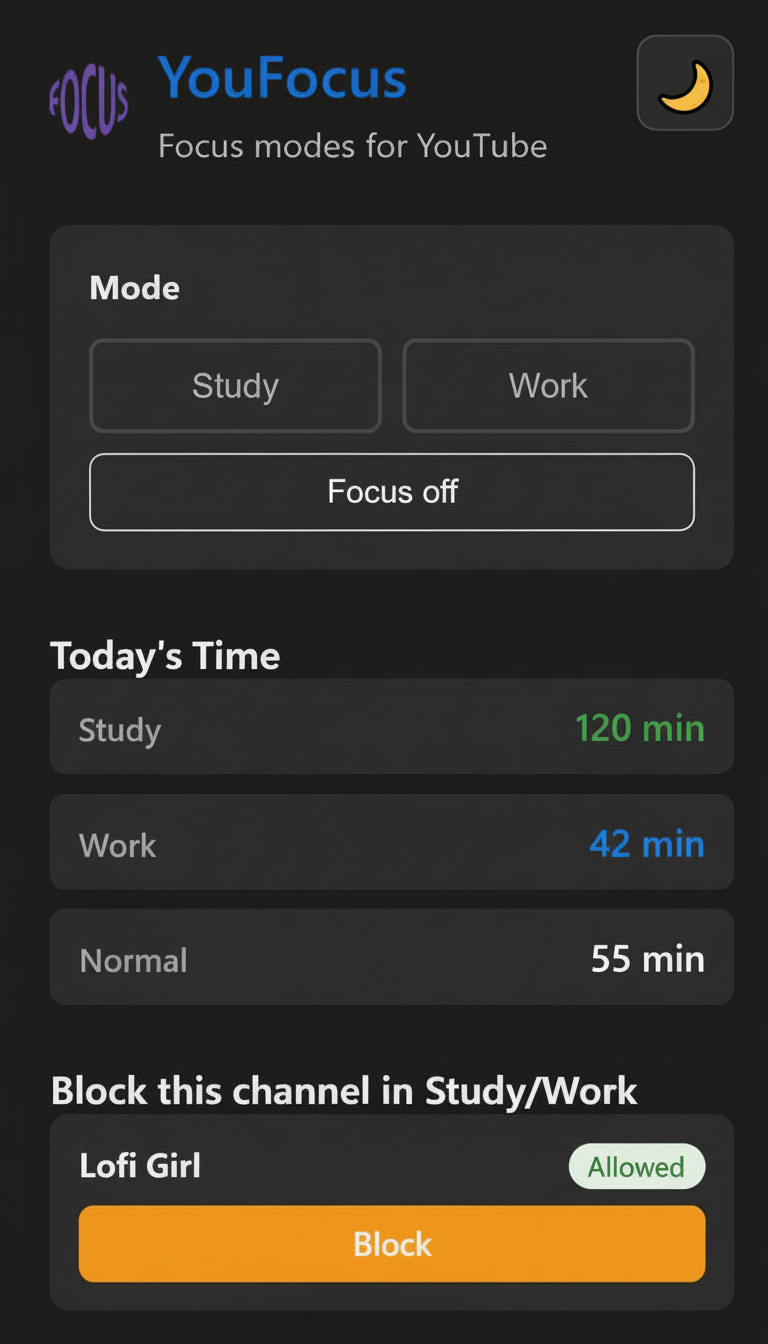
YouFocus is a free Chrome extension for people who still need YouTube for lessons, demonstrations, and work. Its Study and Work modes hide Shorts elements, replace the distracting Home feed, and show a blocking overlay on Shorts pages. Both modes apply the same focus restrictions; they keep Study and Work viewing time in separate categories.
- Open the YouFocus Chrome Web Store listing and install the extension.
- Open YouTube in that Chrome profile. Pin YouFocus through Chrome’s extensions menu if you want the mode switch within easy reach.
- Click the YouFocus icon and choose Study for learning or Work for a work task.
- Return to YouTube. If the tab was open during installation, refresh it so the extension can run on the page.
- Visit Home and then a Shorts link. Check that the focus interface appears and the Shorts page is interrupted.
- Open a normal lesson through Search, Subscriptions, or a saved link. Check that you can watch the material you intended to use.
That last check matters. A setup that stops entertainment but makes your coursework difficult to reach is unlikely to survive the first busy afternoon. Keep a bookmark to your current course or a short list of lesson links. Your next action should be opening a useful video, rather than deciding what to watch from an empty starting point.
YouFocus works in the browser where it is installed and enabled. It does not remove Shorts from YouTube’s servers, change your Google Account settings, or make a channel inaccessible everywhere. Turning Focus off restores normal browsing. You can read more about the surrounding workflow in the YouTube Study Mode guide.
How to limit YouTube Shorts on your phone
In the YouTube app, sign in and open the You tab, then Settings → Time management → Shorts feed limit. Choose a duration, including zero minutes if you want the reminder before scrolling. YouTube says the limit message can be dismissed or ignored. See the official Shorts feed limit instructions.
To ask for fewer Shorts recommendations, open a Shorts grid on Home in the app, use its menu, and choose Show fewer Shorts. YouTube describes this as recommendation feedback. See its guide to managing recommendations.
After changing the mobile setting, open the Shorts feed and observe what happens. Then open the kind of lesson you normally watch. This two-part check tells you whether the interruption is useful without preventing the activity you want to keep. Do not assume a setting has reached another device just because you use the same account there.
If the menu differs on your phone, update the app and check the linked official instructions. YouTube changes its interface over time. A screenshot from an older guide can be accurate for its date and still lead you to the wrong menu today. The desktop workflow above is separate from these mobile controls.
Turn the cleaner screen into a practical study routine
Removing a distraction gives you room to work, but you still need something concrete to do in that room. Before opening a lesson, write one sentence describing the result you need. “Understand Python” is too broad for one session. “Write a loop that totals the prices in this list” gives you an action to attempt when you pause the video.
Choose one main video and, if necessary, one backup explanation. Save the backup without playing it immediately. That small preparation prevents a common detour: repeatedly searching for a better explanation before trying the first one. You can keep YouTube available while narrowing the number of decisions you make during the session.
Use an initial session length that fits your schedule. Twenty or thirty minutes can be a convenient experiment, but there is no special duration required by YouFocus. Pick an endpoint you will recognize: finish one worked example, solve one exercise, or produce a short summary. If the task takes longer, decide deliberately whether to continue.
- Start: switch to Study and open the saved lesson.
- During the video: pause when the instructor demonstrates something you can try yourself.
- At a useful moment: save a short note about the question, example, or mistake you want to revisit.
- Before leaving: write your next action, such as “repeat this without looking at the solution.”
- At the next session: begin with that action before searching for another video.
Timed YouTube notes make the return trip easier. A note attached to the relevant second can be more useful than bookmarking an entire forty-minute lecture. Later, use clickable timestamps in History to return to that explanation. This gives your viewing a visible output beyond another completed video.
After several sessions, review what changed. Did you finish the exercise? Did you keep reopening Shorts on your phone? Did the desktop setup feel too restrictive for the task? Adjust the part that caused difficulty. Viewing-time records can support this review, but minutes alone do not tell you whether you understood the lesson.
If Shorts still appear, check these things first
Check the mode. Study and Work apply the focus restrictions. Focus off intentionally allows ordinary browsing. If you switched it off for a break, turn it back on before judging whether the Shorts controls are working.
Check the browser profile and tab. An extension installed in one Chrome profile does not automatically run in another. Make sure YouFocus is enabled, has access to the YouTube site, and is installed in the profile you are using. Refresh a tab that was already open when you installed or updated the extension.
Check which surface you are seeing. A Shorts recommendation, a direct Shorts page, a normal watch page, and the phone app are different surfaces. Write down which one is failing. “Shorts are still there” is difficult to act on; “a Shorts shelf remains on Home in Chrome while Study is selected” identifies a specific problem.
Check for an interface change. YouTube can change its page structure, which can affect browser extensions that hide page elements. If the mode and site access are correct, send feedback with your browser version, extension version, selected mode, and the steps that reproduce the issue. Include a screenshot if useful, with personal information removed. Avoid changing several unrelated settings at once, because that makes it harder to identify the cause.
For feedback about YouFocus, use the YouFocus feedback form. Describe what you expected and what actually happened. A short reproducible report helps more than a general request to “block everything.”
Common questions about hiding Shorts
Can I keep watching normal YouTube videos?
Yes. The purpose of the YouFocus setup is to keep learning and work videos accessible while restricting distracting surfaces. Search, Subscriptions, and direct lesson links remain useful starting points. A channel you added to the Fun list will be blocked during Study and Work, so review that list if a particular lesson is interrupted.
Does a zero-minute mobile limit permanently disable Shorts?
YouTube describes it as a feed limit with an option to dismiss or ignore the reminder. That makes it a prompt to stop, rather than an irreversible account restriction. Check the official instructions above for the current behavior.
Do I need to delete my YouTube history?
The YouFocus desktop setup described here does not require deleting your YouTube history. You are changing how the page behaves during focus mode. Before deleting anything from an account, consider whether you still need it to find lessons you watched earlier.
Will YouFocus stop me from turning the mode off?
No. The mode switch remains available to you. This is a tool for your own study routine, not a tamper-resistant parental-control system. If you want entertainment later, choose a stopping point for your work and turn Focus off when you reach it.
Start with one real session: open YouFocus, choose Study, and use one lesson to complete one task. Keep the setup if it makes returning to that task easier.